
1. RFQ Header Information
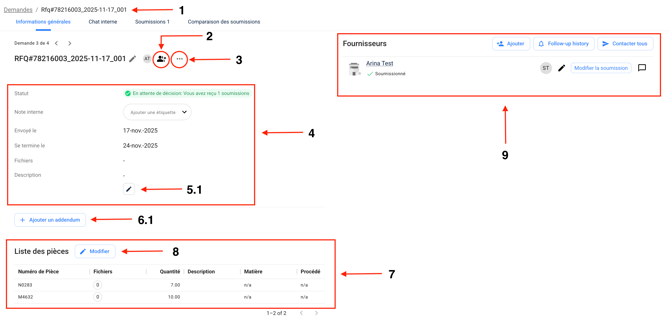
1.1 RFQ Number / Name
-
Identifies the RFQ within Axya.
-
Used for searching, filtering, and referencing in communication.
2. Collaborator List
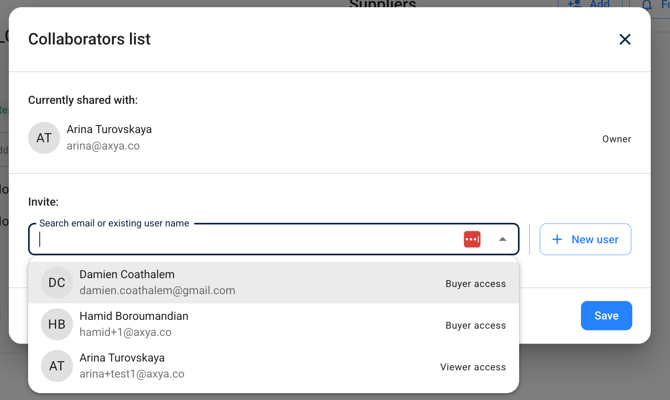
Allows you to share the RFQ with other Axya users.
2.1 Adding Collaborators
-
Open the RFQ page.
-
Click on the icon Add collaborator.
-
Select an existing user or add a new one.
-
Click Save to confirm.
3. Three-Dot (More Options) Menu
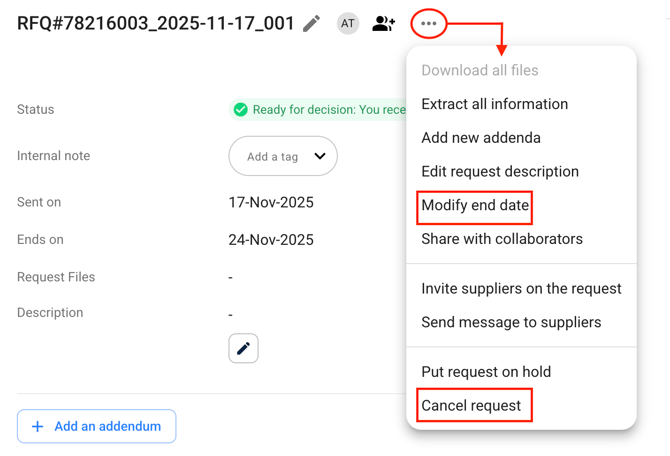
Provides key RFQ-level actions, including:
-
Modifying the RFQ end date
-
Canceling the RFQ
4. RFQ Details Section
Displays core information such as:
-
RFQ status, Send date, End date
5. RFQ Description
5.1 Editing the Description
-
Click Edit icon in the description area.
-
Update the text as needed.
-
Click Save.
6. Managing RFQ Files
6.1 Adding Additional Files
-
Click Add an addendum.
-
Choose whether to notify all suppliers or specific suppliers.
-
Add a message explaining the update.
-
Attach the documents.
-
Click Send.
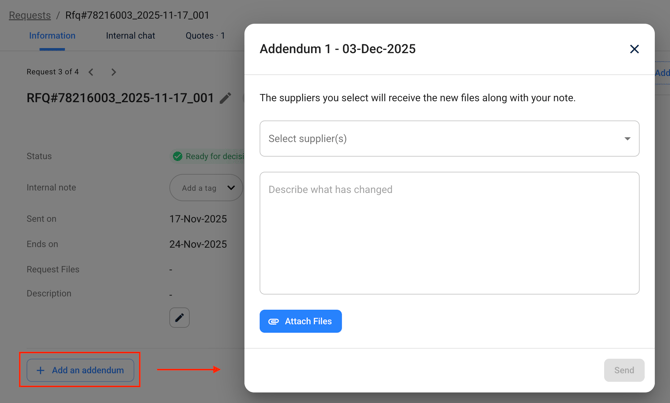
Suppliers automatically receive a notification.
7. Part List Within the RFQ
Shows all items included in the RFQ, including part name, quantity, and associated files.
8. Editing the Part List
8.1 Modifying Parts and Quantities
-
Click Edit.
-
Use Add Row to add new parts.
-
Adjust quantities.
-
Attach part-level files if needed.
8.2 Publishing Changes
You can publish changes with or without a revision note.
Suppliers receive an automatic email notification when changes are published.
9. Supplier List & Contacts
Shows each supplier’s status and allows you to:
-
Update the supplier’s quote details
-
Contact suppliers
-
Add or remove supplier contacts assigned to the RFQ
10. Internal Communication Channel
The internal chat is visible only to your internal team and is used for buyer-side collaboration.
11. Quotes Section
Allows you to:
-
View supplier quotes
-
Export quotes as PDF
-
Edit supplier quotes
-
Contact suppliers
-
Award the RFQ
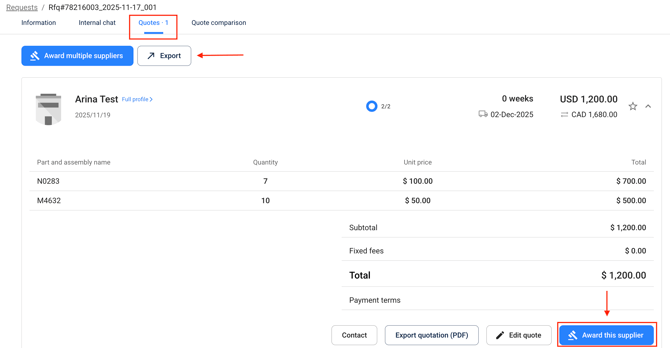
Awarded suppliers are automatically notified.
If you have any additional question please contact us at customerservice@axya.co