
1. Overview of Axya Columns in LN
Axya adds several read-only columns in Infor LN to show the real-time status of each part within Axya.
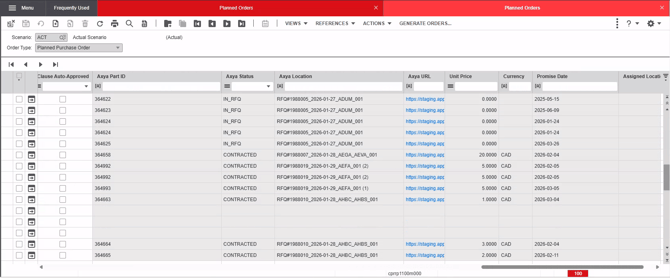
Axya Status
Reflects the current lifecycle state of the part inside Axya:
-
Created – Part exists in Axya but is not yet in an RFQ (you can locate these parts using the Axya location name in the Projects tab in Axya).
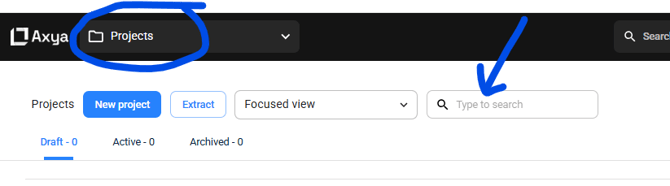
-
In RFQ – Part has been launched into an RFQ (you can locate these parts using the Axya location name in the RFQ name search bar on the top in Axya. This applies for Contracted and Canceled status as well).
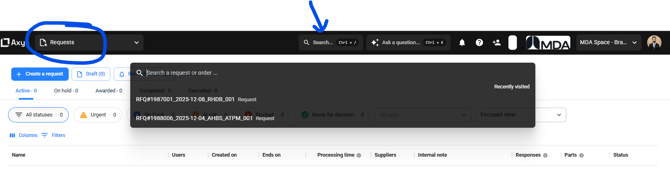
-
Contracted – The RFQ has been awarded.
-
Canceled – The RFQ was canceled.
Axya Location
Indicates where the part currently resides in Axya:
-
If the part is in an RFQ, the column shows:
RFQ#<unique number>_RFQ Name -
If the part exists only in a project draft, it shows the project name without RFQ digits.
Unit Price, Currency, Promise Date, Selected vendor
These fields remain empty until the RFQ is awarded. Once the supplier selection is finalized, Axya sends back:
-
Awarded unit price
-
Currency
-
Promise date
- Selected vendor
Axya Part ID
A unique ID generated by Axya for each part upon creation.
Important: This ID is required later when attaching parts to existing RFQs.
2. Creating a New RFQ from LN
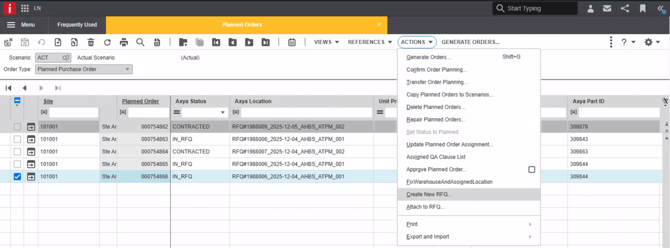
Step 1 — Select Parts
Choose one or multiple parts in LN.
Step 2 — Create the RFQ
Go to Actions → Create RFQ.
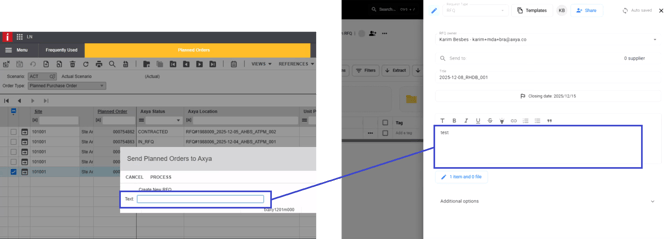
You will see a text field where you may include optional comments for suppliers.
These comments appear in the RFQ draft and in the supplier email.
Click Process to generate the RFQ.
3. Line Merge on Axya
When multiple lines are sent to Axya within the same Create RFQ event, Axya automatically merges lines that share the following three attributes:
-
Part Number
-
PA Clauses
-
Location
If all three values match, Axya combines those lines into a single RFQ line.
The Requested Quantity on the merged line becomes the sum of all quantities from the individual lines that were merged.
This ensures cleaner RFQs, avoids duplication, and simplifies supplier quoting.
4. What Happens in Axya After RFQ Creation
Once processed:
Project Draft Creation
-
The parts appear under Projects → Project Name → Draft in Axya.
-
The Project Name matches the Axya Location value displayed in LN when status = Created.
- The naming nomenclature is:
{{today's date}}_ {{list of unique item_group}}_{{daily increment }}
ex: 2025-12-04_AHBS_ATPM_001 - The Project will have all the parts selected from LN with their metadata (Part number, qty, description, item group, revision, need date, unit, PA clauses, Location, Site)
Searching a project:
Parts within the project and their metadata
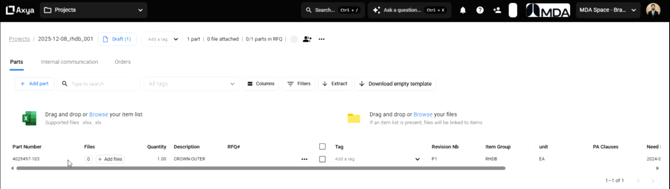
RFQ Draft View
Opening the draft shows the automatic RFQ draft created by the integration, where the buyer will have to review;
- Supplier targeting
- The RFQ end-date (defaulted to +1 week in Axya. Can be changed manually on a case-by-case basis)
- The description
- Add the additional technical files
Buyer Ownership is assigned automatically based on LN account who submitted the request (if the acconut exist on Axya, based on a match on the email adress)
The company in which the project and RFQ draft is created is based on the Site from LN.
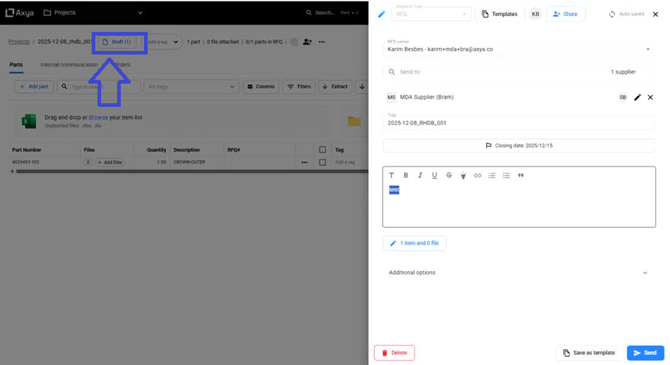
Supplier Targeting
Axya matches item groups in the RFQ with item groups associated to suppliers in Company Settings → Suppliers.
Rules:
-
If a supplier shares at least one item group with a part, it becomes a targeted supplier.
- If no supplier has the required item group, no supplier is added automatically.
RFQ Description
The data entered in the "text" field in LN will appear in the RFQ description area. You can always enrich the text / add information within Axya for more clarity for the vendors.
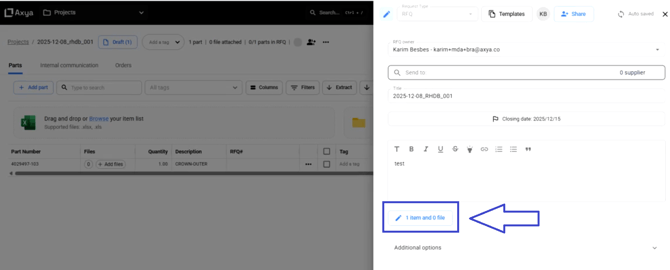
Adding Technical Files (optional, if applicable)
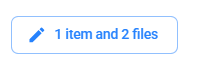
In the RFQ draft,click on the "X item and 0 file" button
Drag and drop files into the Drag and Drop section and hit "X" when the loading is completed.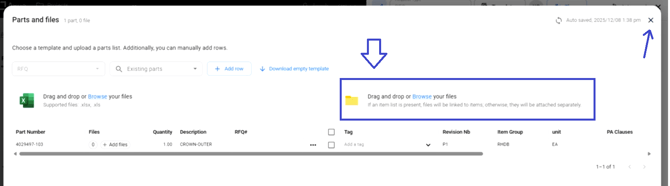
Once uploaded, the file counter updates according to the quantity of files successfully uploaded.
Sending the RFQ
Click Send Request once the RFQ is ready.

5. Tracking the RFQ After Sending
Once the RFQ is sent:
-
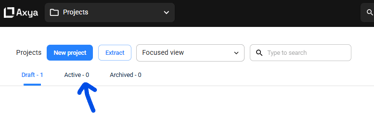
The project moves under Active.
-
A unique RFQ number is generated.
ex: RFQ#1988006_2025-12-04_AHBS_ATPM_001
-
LN updates its Axya Location column with this unique number.
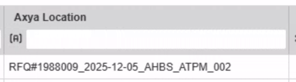
You can always copy the location name from LN and search for it in Axya.
Lifecycle:
| Status | Where to find in Axya |
| Part Created | In Projects with the project search, you can find the project with the items inside > RFQ draft > Review RFQ and send |
| In RFQ | In Requests1 > manage RFQ and close when completed (cancel or contract) |
| Contracted | In Requests1 > Awarded. Data pushed back about the supplier selected in LN for PO creation |
| Canceled | In Requests1 > Cancelled. No data push back from Axya to LN, other then the Cancelled status. |
1When searching for a request, you can also simply use the top search bar in Axya by inputting the full RFQ name or a partial string from the name.

When an RFQ is contracted to a vendor, Axya sends back the on the line level2:
-
Unit price, which equals to the supplier quoted unit price against the line
-
Currency, which equals to the supplier quote currency (same for all quoted lines)
-
Promise date, which equals to the supplier quoted lead-time against the line + the buyer award date of the RFQ
-
Selected supplier code in the Buy From field, which equals to the vendor ID mapped in the suppliers page on Axya
*An RFQ can be splitted to multiple outcomes (i.e. some lines awarded to supplier X, some lines awarded to supplier Y, some other lines remaining open, etc.) In this case, Axya push back the updates on the line level in LN
6. Adding Parts to an Existing RFQ
If you want to add a new part to an existing RFQ and notify the targeted vendors of the given RFQ about the part list revision, you can use the "Attach to RFQ" feature;
Step 1 — Select Parts
Choose one or multiple parts in LN.
Step 2 — Select “Attach to RFQ”
Go to Actions → Attach to RFQ.
%20Attach%20to%20RFQ%20from%20part-png.png?width=670&height=252&name=4)%20Attach%20to%20RFQ%20from%20part-png.png)
Step 3 — Provide Required Fields
You must enter:
-
Optional supplier message
-
Axya Part ID of any part currently in the target RFQ
Axya uses this part ID to locate the correct RFQ and triggers a revision process.
%20Attach%20to%20RFQ%20dialog-png.png?width=670&height=242&name=3)%20Attach%20to%20RFQ%20dialog-png.png)
Result in Axya
-
The RFQ is revised with new parts added.
-
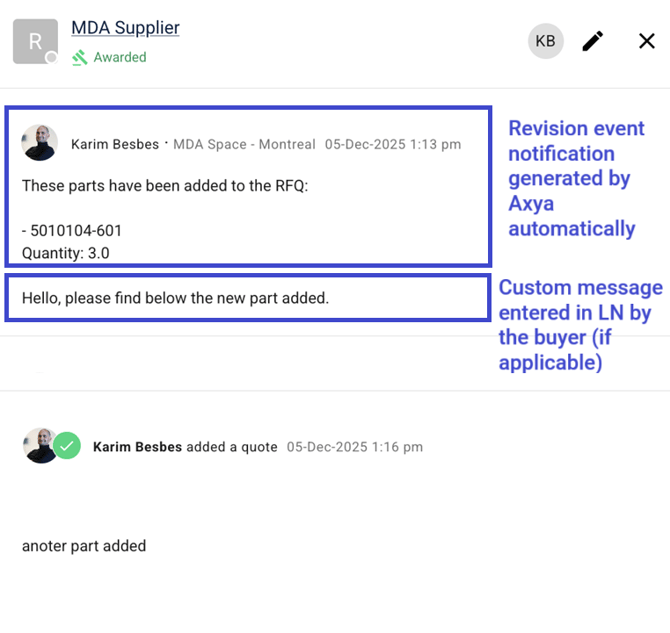
A revision event appears in the supplier chat.
-
All targeted suppliers who have not already no-quoted receive:
-
A revision notification by email
-
An updated excel list of part that they can use to re-submit a new bid/revised bid against the new list of part
-
Line merge if existing in target RFQ
The logic defined in the 'section 3. Line Merge' on Axya also applies to the revision process explained above.
7. Update Rev or Due Date on lines existing in Axya
Buyers can update any LN line that already exists in Axya, including:
-
Parts with Part Created status
-
Parts already included in an RFQ
Steps:
-
Select the relevant lines in LN
-
Click Update on Axya
-
Choose to:
-
Process without text notes, or
-
Add a text note and process
-
What Axya Tracks
Axya only tracks and synchronizes changes on: Revision number and Need date
These are the only values Axya enables to be updated in linecommunicated to suppliers when applicable.
If the Part Is Already in an RFQ
-
The line is updated directly in the RFQ with the new Revision number and/or Need date and Axya automatically triggers an RFQ revision notification to suppliers.
-
Active suppliers receive an email notification with:
-
A summary of tracked changes (changes on the Revision number and/or Need date)
-
Any buyer note added during the update
-
An updated Excel file listing the latest part list values
-
-
Suppliers in No Quote status do not receive notifications
If the Part Is in an RFQ Draft Only
-
The line is updated directly in the RFQ draft with the new Revision number and/or Need date
-
No supplier notification is sent
-
Updated data will be included when the RFQ is eventually sent
8. How to re-submit a existing line in a new RFQ on Axya
If a line in Infor LN already exists in Axya, there are only two scenarios in which you can remove that reference and submit the same line in a new RFQ on Axya:
-
The part is still in an RFQ draft (i.e. Status = PART CREATED)
-
The part is part of a canceled RFQ (i.e. Status = CANCELED)
Required Steps
In either of these cases, the user must:
-
Delete all values under the Infor LN – Axya columns (for example: Axya Location, Axya Part ID, etc.)
-
Submit the same line again using the standard Send RFQ process within LN
This creates a new line in Axya and completely ignores the previous instance (whether it was in a draft RFQ or a canceled RFQ). This allows the buyer to initiate a new quotation process for the same part.
Recommended Cleanup for lines that were in Draft (Part Created)
If this process is applied to parts that were still in an RFQ draft (i.e. Status = PART CREATED), it is strongly recommended to first clean up the existing data in Axya:
-
Open the Projects tab in Axya
-
Open the project containing the relevant part(s)
-
Delete the corresponding line(s)
-
If all lines in the project are deleted:
-
Open the RFQ draft and delete it
-
Delete the project entirely
-
This ensures a clean database and prevents obsolete or unused items from remaining in Axya.
If you have any additional question please contact us at customerservice@axya.co