
1. Prerequisites Before Sending a PO From Sage X3 to Axya
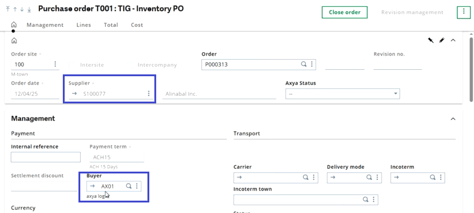
Before using Send to Axya in Sage X3, ensure the following:
-
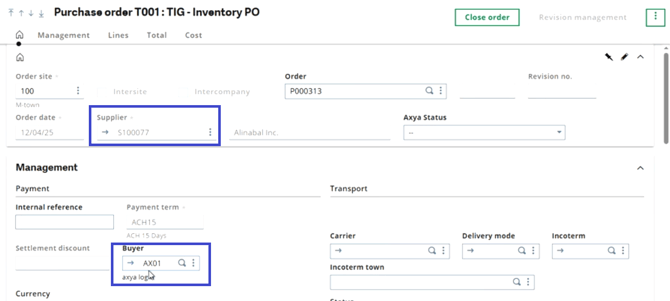
Supplier ID exists in Axya
Axya routes the PO to the correct vendor based on this ID. -
Buyer ID exists in Axya
Axya assigns the PO to the appropriate buyer using the Buyer ID.
If either value is missing, the integration will fail to create the PO and an error message will be returned.
2. Understanding Axya Integration Statuses in Sage X3
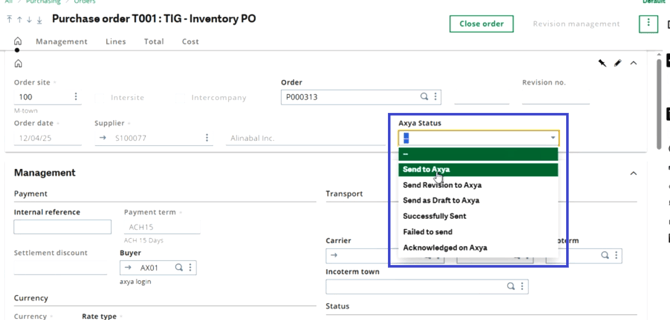
Send to Axya
Publishes the PO to Axya and immediately sends it to the vendor.
Send a Revision
Pushes a revised version of an existing PO to the vendor when:
-
A line is added or removed
-
A quantity or price change is made
Send as Draft
Sends the PO to Axya as a draft, allowing the buyer to:
-
Add technical documents or attachments before manually sending the PO from Axya
Successfully Sent / Failed to Send
Feedback returned by the integration:
-
Successfully Sent → PO created and transmitted correctly
-
Failed to Send → Typically caused by:
-
Missing Supplier ID in Axya
-
Missing Buyer ID in Axya
-
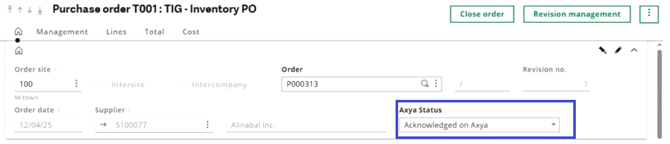
Acknowledged on Axya
Indicates that the vendor confirmed the order in Axya and the confirmation synced back to Sage X3.
3. Sending a PO to Axya for the First Time
-
Set the status to Send to Axya.
-
Click Save.
-
Print the PDF (required only the first time).
This allows Axya to retrieve and attach the original PO PDF. -
Axya creates the PO under the correct vendor and buyer.
4. What Happens After Vendor Acknowledgement
When the vendor acknowledges the PO in Axya:
-
Sage X3 updates the PO status to Acknowledged on Axya.
-
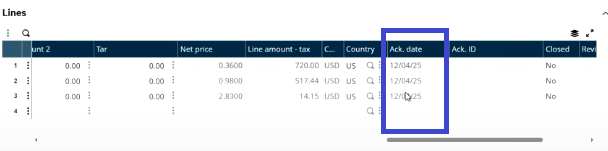
Each PO line receives:
-
Acknowledged Date (Ack. date) → Date of vendor confirmation
-
Promised Ship Date → First confirmed delivery date (never changes afterward)
-
These fields are essential for tracking first commitment dates and on-time delivery.
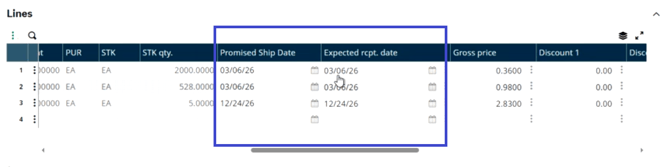
5. Recap of how date changes works between Axya and X3
6. How Revisions Work
A. Revisions Triggered From Axya
Happen when:
-
Supplier proposes a quantity or unit price change
-
Buyer approves the change
Results:
-
Axya pushes the new values to Sage X3 and updates the PO
-
A new revision is generated and incremented
-
A new PDF is attached in Axya
-
Supplier must re-acknowledge the order
Note: Date-only changes do not trigger a revision but still update Sage X3.
B. Revisions Triggered From Sage X3
Users may push changes directly from the ERP:
-
Select Send a Revision status.
-
Make changes (e.g., delete or add a line).
-
Save.
Axya receives a new revision and notifies the vendor with a new pdf print, a new revision increment and the supplier must re-acknowledge the order.
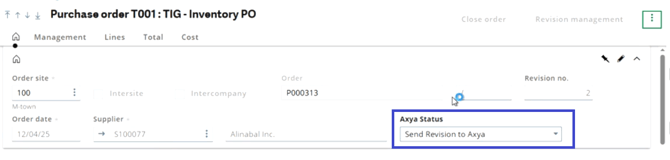
7. PO Line Reception and Archiving
As goods are received in Sage X3:
-
Quantity Received increases
-
Open Quantity decreases
-
When Open Quantity = 0, the line is archived
-
When all lines are archived, the entire PO moves from Active to Archived in Axya
8. Cancelling a PO
To properly notify the vendor:
-
Cancel the PO in Axya → triggers email notification to the supplier.
-
Then cancel the PO in Sage X3 using your standard ERP process.
If canceled only in Sage X3, the vendor is not notified.
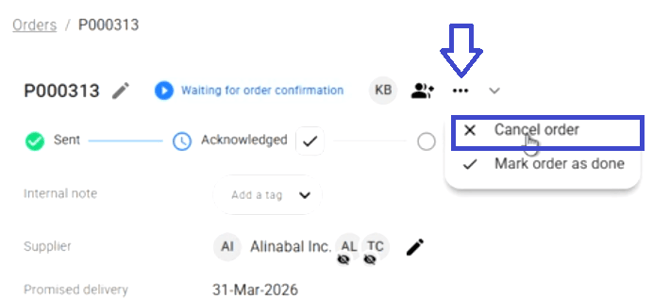
9. Sync Frequency Between Sage and Axya
Sage -> Axya 5 minutes
Axya -> Sage 30 secondes
Sage and Axya automatically compare and update records every five minutes. This means that any change made to a PO in Sage (e.g., PO sent, line reception, PO modifications or revisions) will appear in Axya during the next five-minute synchronization cycle.
On the other hand, any update made in Axya (such as a revision or confirmation) will be reflected in Sage at the next 30-second sync.
In Axya, you can visually confirm the most recent synchronization by clicking the Sage icon at the top right. The timestamp displayed next to “Last ERP Connectivity Verification” indicates the last completed sync. From there, you can determine the next sync by adding five minutes to that timestamp.
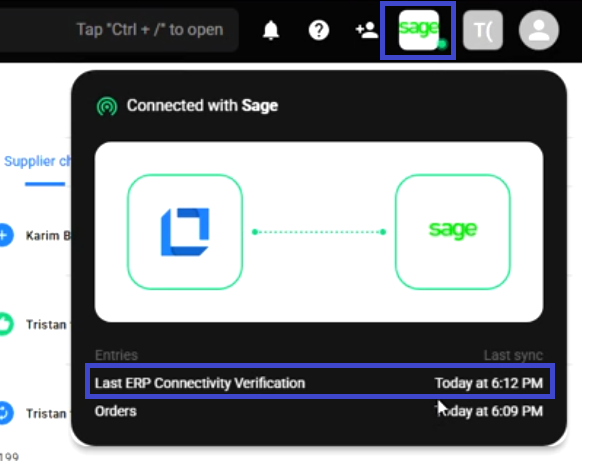
10. Failue to sync process
A failure to sync can happen for 2 main context:
1) Failure to create the PO in Axya
This typically happens when either the Vendor ID is missing or there is no matching buyer between the Sage PO ownership and the Axya user list.
In both cases, the PO status will change to “Failed to Send”, and the buyer will receive an email notification indicating which PO failed and the reason for the failure.
How to Resolve
-
Missing Vendor ID:
Add the vendor in Axya with the correct Vendor ID. Then edit the PO and set its status back to Axya Send to trigger a new sync attempt. -
Missing Buyer:
Contact customerservice@axya.co to have the new buyer code and account added.
Alternatively, update the buyer code directly in Sage to one that already exists in Axya.
2) Failure from Axya to update the PO
This occurs when the PO is open in Sage by a user at the same time Axya attempts to update its fields or statuses.
How we notify failures:
When this happens, Axya will retry pushing the update for 200 consecutive attempts. Because the sync runs every five minutes, this gives the user a window of approximately 17 hours (200 × 5 minutes) to close the PO in Sage so Axya can successfully apply the update.
If, after all 200 attempts, Axya still cannot push the data back to Sage, the system will send a failure notification email to the buyer who owns the PO. If the buyer doesn't exist in Axya, the failure notification will be sent to the IT manager defined in the company details on Axya. At that point, the buyer must manually apply the missing updates in Sage (e.g., confirmation status change, date update, etc.)
If you have any additional questions, please contact us at customerservice@axya.co