
1. Export the RFQ Summary (PDF)
You can export a complete summary of the RFQ at any time.
Steps
-
Open the RFQ.
-
Click the three dots in the General Information section.
-
Select Extract all information.
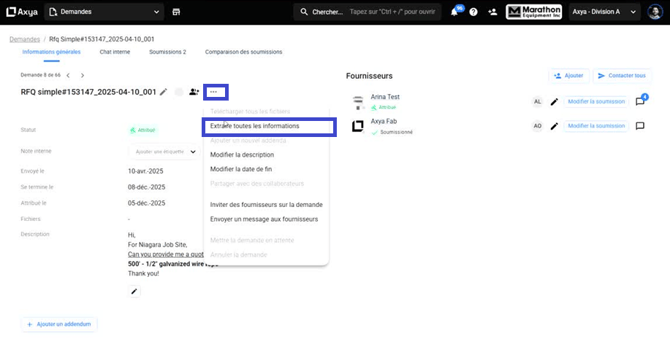
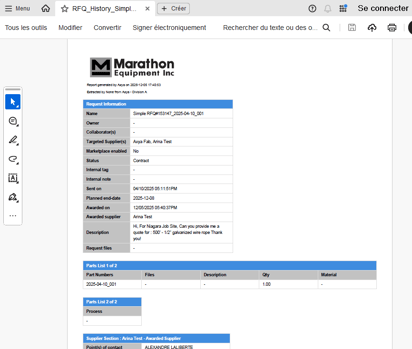
This generates a PDF summarizing the entire RFQ, including:
-
RFQ name, owner, and creation date
-
Invited suppliers and RFQ status
-
Bill of materials or requested items
-
Supplier responses and pricing
-
Communication history
This document serves as a record of the RFQ bidding process.
2. Download Supplier Attachments
Suppliers may upload documents or technical files with their submissions.
Steps
-
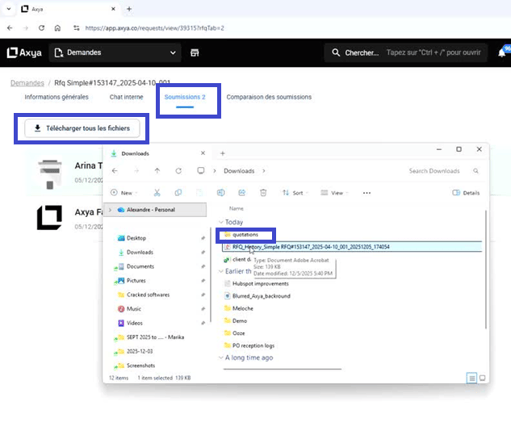
Open the RFQ.
-
Click Download all files.
Axya generates a ZIP file containing all files submitted by suppliers.
3. Export Supplier Quotes to Excel (Normal RFQs)
For Normal RFQs (with Axya-generated bid sheets), you can export supplier quotes.
This export provides an Excel file containing quote information from all suppliers, including pricing and submitted data.
If you require customized export formats, contact your Customer Success Manager.
4. Export Quote Comparisons (Simple RFQs)
For Simple RFQs, quote data is typically managed through an uploaded bid sheet.
To export comparisons:
-
Open the comparison view built from the bid sheet.
-
Configure the fields you want to compare.
-
Export the view as Excel.
5. Using Exports in Your ERP
Exported files can be attached to your ERP purchase requisition, providing visibility into the RFQ process and supporting documentation for the purchase order.
If you have any additional question please contact us at customerservice@axya.co