
Accessing a PO
To open and review a Purchase Order:
-
Navigate to Orders from the menu bar.
-
Search for or select the PO you want to review.
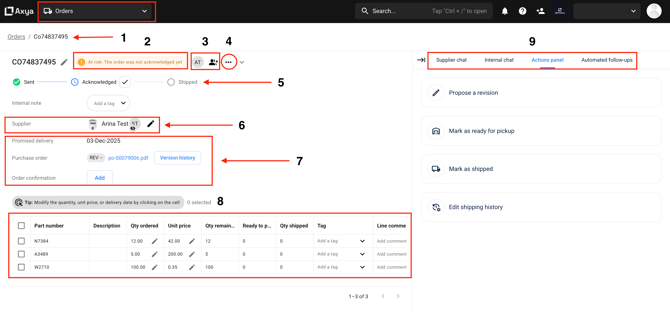
1. PO Number
-
The PO number appears at the top of the page.
-
It acts as the main reference between your team and the supplier.
2. PO Status
-
Displays the current status (e.g., Waiting for confirmation).
-
Statuses update automatically as the order progresses.
3. Collaborators
-
Shows all collaborators added to the PO.
-
Click to:
-
Add collaborators from the user list.
-
Add new users if needed.
-
Click Save to confirm.
-
4. Three-Dot Menu
This menu allows you to:
-
Cancel the order
-
Mark order as done (moves it to Archive)
5. PO Status Timeline
Shows the full lifecycle of the PO:
-
Sent
-
Acknowledged
-
Shipped
If a check mark appears beside Acknowledged, you can acknowledge the PO on behalf of the supplier.
6. Supplier Details
-
Displays the supplier’s information.
-
Indicates whether the supplier has viewed the PO.
-
Click the pencil icon to modify the distribution list:
-
Add or remove contacts
-
Select contacts from the list
-
Click Validate to save
-
7. Promise Date & Files
Promise Delivery Date
-
Shows the date promised by the supplier.
PO File & Version History
-
View the current PO file.
-
Review version history if revisions were made.
Order Confirmation
-
Use the Add button to upload an order confirmation received by email on behalf of the supplier.
8. Part List
Displays all items included in the PO, along with their details.
9. Right-Side Tabs
1. Supplier Chat
-
Direct communication channel with the supplier.
-
Attach files.
-
All messages are delivered to the supplier via email.
2. Internal Chat
-
A private collaboration space for you and internal team members added to the PO.
-
Messages are not visible to suppliers.
3. Action Panel
From here, you can:
-
Propose a revision
-
Mark order as Ready for pick-up
-
Mark order as Shipped
-
Edit Shipping History
-
Apply updates to all parts or select specific parts only
-
4. Automated Follow-Ups
-
Automated reminders are usually enabled by default.
-
They can be disabled or re-enabled as needed for the PO or supplier.
If you have any additional questions, please contact us at customerservice@axya.co