
1. Sending a Purchase Order from Epicor to Axya
Key Steps
-
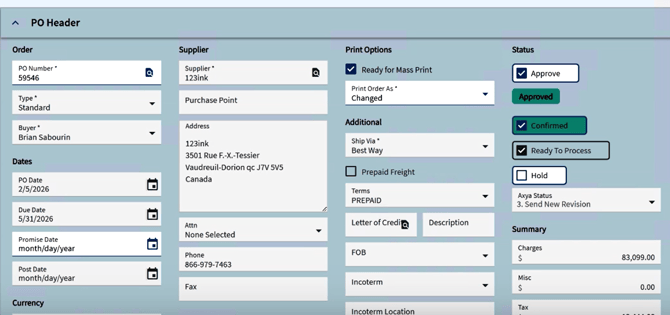
Open a Purchase Order in Epicor Kinetic.
-
Review:
-
PO number
-
Supplier
-
Buyer (PO owner)
-
-
Set the Axya Status to Send to Axya.
-
Save and approve the PO.
Result
-
The PO is synchronized to Axya based on the configured sync frequency (every 1 to 5 minutes depending on your IT configuration).
-
The PO is automatically sent to the supplier via Axya's email delivery system and tracked onwards within Axya interface for buyers.
-
Ownership in Axya is assigned to the same buyer as in Epicor.
-
Supplier mapping is done using the vendor code.
2. Purchase Order Structure in Axya
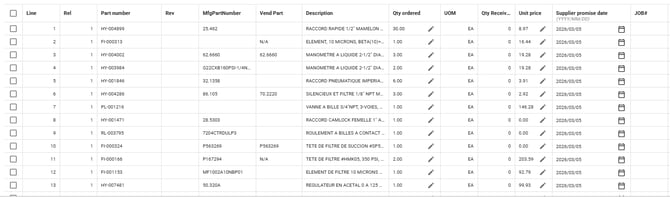
Line and Release Management
-
Axya reflects:
-
Lines
-
Releases per line
-
-
Each release includes metadata such as:
-
Quantity
-
Unit price
-
Due date
-
Promise date
-
This structure allows granular tracking of supplier commitments at the release level.
3. Supplier Confirmation Workflow
Initial Confirmation
-
Once the supplier confirms the PO in Axya:
-
Axya sends the confirmation back to Epicor at the next sync.
-
The PO status updates to PO Confirmed in Epicor.
-
Confirmation dates are populated at the release level.
-
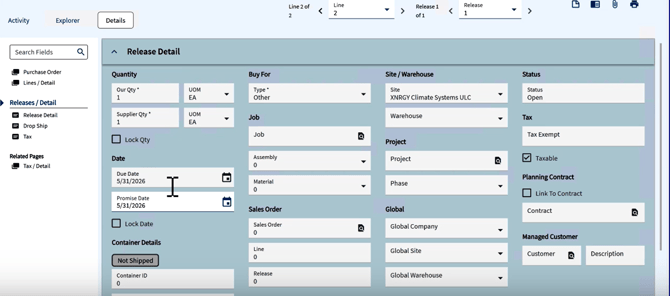
Date Handling Logic (Configurable)
-
Due Date:
Can represent the initial confirmed date (frozen). -
Promise Date:
Can represent the latest approved supplier commitment (continuously updated).
This logic is fully configurable per client and can be reversed depending on planning and KPI needs.
4. Revisions Triggered by Quantity or Price Changes
Buyer-Initiated Changes
-
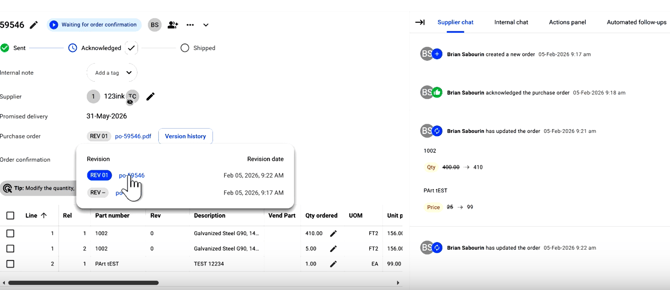
Changes to quantity or price in Axya:
-
Trigger a PO revision
-
Automatically:
-
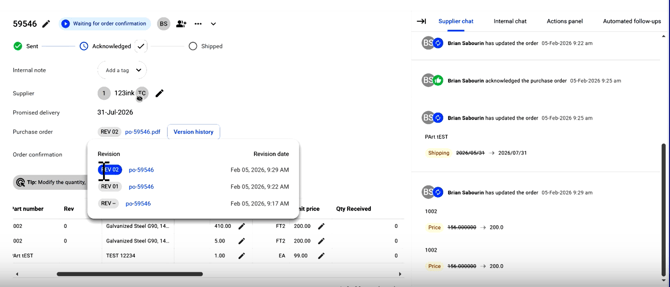
Increment the revision number on Axya (e.g., REV01, REV02)
-
Reprint the PO PDF from Epicor
-
Resend the updated PO to the supplier
-
-
-
The PO status in Epicor reverts to Successfully Sent until reconfirmed by vendor.
Supplier-Proposed Changes
-
If a supplier proposes quantity or price changes:
-
Buyer approval is required before:
-
Updating Epicor
-
Triggering a revision
-
Sending a new PDF to the supplier
-
-
PDF Version History
-
Axya maintains a full history of PO PDFs, including:
-
Original version
-
All revised versions
-
-
Each revision is timestamped for auditability.
5. Date Changes Without Revisions
-
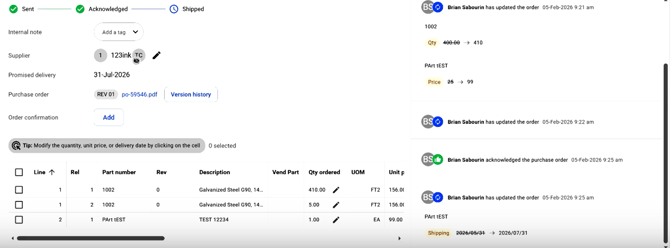
Date-only changes (approved by the buyer):
-
Update Epicor
-
Do not trigger a new revision
-
Do not require supplier reconfirmation
-
-
Dates are managed at the release level.
6. Initiating Revisions from Epicor
Axya Revision from ERP
Buyers can:
-
Add or remove lines
-
Change quantities
-
Change unit prices
By setting the Axya status to Send Revision and approving:
-
Axya detects the changes at the next sync
-
A new revision is generated
A new PDF is sent to the supplier for reconfirmation
7. Draft Purchase Orders
Send as Draft
-
Similar to Send to Axya, but:
-
The PO is created as a draft in Axya
-
No email is sent to the supplier initially
-
-
Use case:
-
Add technical documents or attachments within Axya's environment before sending to the vendor as a single email event.
-
Once ready, the PO can be sent to the supplier directly from Axya.
8. Receipt Synchronization and Archiving
Goods Receipt
-
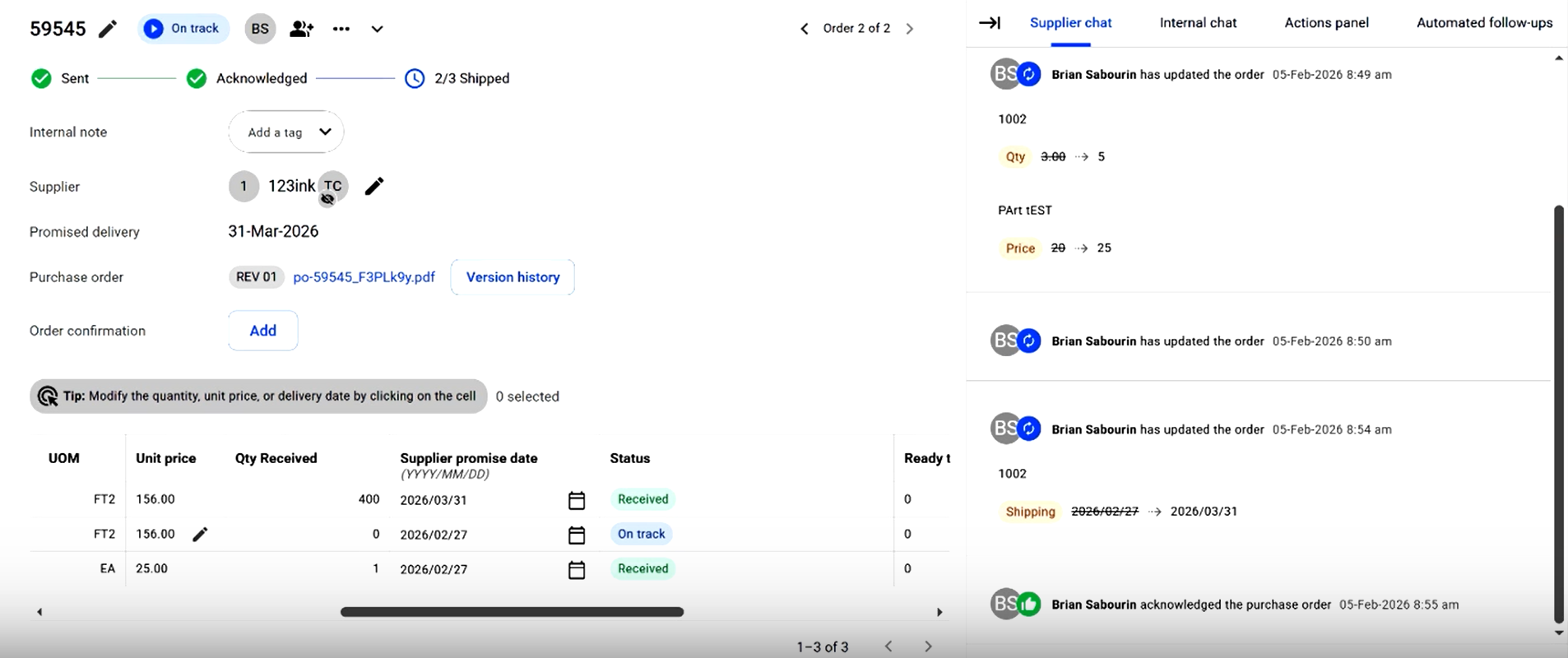
Receipts are performed in Epicor as usual
-
Axya automatically captures:
-
Quantity received
-
Receipt date
-
Line and release status
-
Impact
-
Enables on-time delivery KPIs
-
Supports supplier performance analytics
-
Prevents follow-ups on fully received lines
Archiving
-
When all lines and releases are fully received:
-
The PO is moved from Ongoing to Archive in Axya
-
Procedure for Cancelling an Order in Axya
1. Cancelling an Order No Longer Required
If you need to cancel an order because it is no longer needed:
-
Log in to the Axya platform.
-
Go to the Orders tab.
-
Search for the order using the search bar.
-
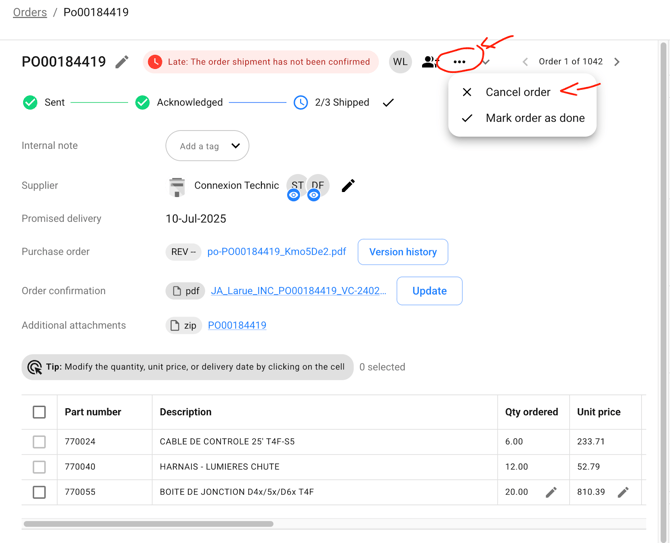
Once on the order page, click the three dots in the top right corner.
-
Select Cancel Order.
-
You may then delete this order in Epicor.
2. Cancelling an Order Sent to the Wrong Supplier
If you accidentally sent the order to the wrong supplier:
-
Cancel the order by following the previous steps.
-
Email customerservice@axya.co to request deletion of the transaction in Axya.
Once the transaction is deleted, you can:
-
Modify the PO in Epicor
-
Resend it through Axya to the correct supplier
⚠️ Important:
If the transaction is not deleted in Axya, you will not be able to resend the order to the correct supplier, as it still exists in the database. Step 2 is therefore essential.
Need Help?
If you have any questions or issues, contact our team at:
📧 customerservice@axya.co